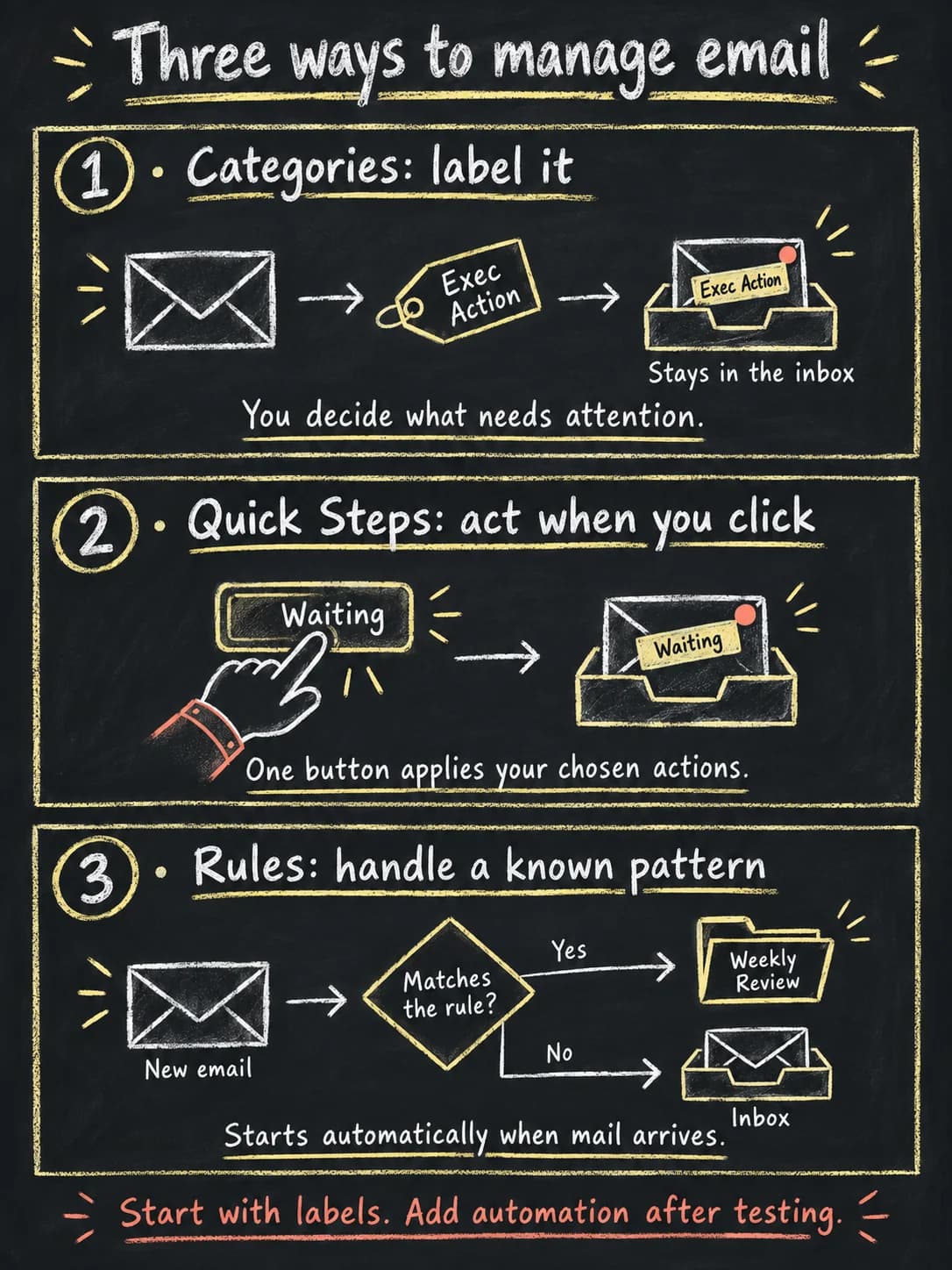
Outlook has 3 tools that are easy to confuse:
- Categories label an email.
- Quick Steps run saved actions when you click.
- Rules act automatically on matching mail.
Start with categories when you need visibility. Use a Quick Step when the decision still needs review. Create a rule when the pattern and its exceptions are predictable.
Categories: label the next action
Categories add a label without moving the email. Use them to show who owns the next action or what status needs attention.
| Category | Use it when |
|---|---|
| Your Action | You own the next step. |
| Someone Else's Action | A specific person needs to decide or respond. |
| Waiting | You asked for something and need to check for a reply later. |
| Meeting | The next step involves scheduling or preparing for a meeting. |
| Needs Routing | You need to confirm who should receive or own the request. |
| FYI | The message contains useful information with no action identified. |
Use one action category at a time. Replace it when the next step changes. Add a second category such as Meeting only when it helps you filter the inbox.
Create and test a category
- Open Settings → Accounts → Categories in new Outlook, or use the Categorize menu in your version.
- Create Your Action, Someone Else's Action, and Waiting.
- Apply them to 5 messages.
- Filter by category and confirm all 5 appear.
- Change the category when ownership changes.
Categories do not create reminders. Use a follow-up flag, task, or calendar event when a deadline matters.
Microsoft's current steps for the available Outlook versions are in Create and assign color categories in Outlook.
Quick Steps: save a repeated action
A Quick Step runs one or more actions after you review the email and click the button.
| Quick Step | What it does after review |
|---|---|
| Project A | Moves the selected email to the Project A folder. |
| Waiting | Applies the Waiting category. |
| Meeting follow-up | Applies Your Action and Meeting. |
| Weekly reading | Moves the selected email to a folder you review once a week. |
| Client reference | Moves a completed thread to the correct client folder. |
Start with one filing button. Confirm that it moves the message to the correct folder without changing anything else.
Create and test a Quick Step
- Open Home → Quick Steps → Manage quick steps in the intended mailbox.
- Create a Quick Step with one move or category action.
- Remove any default action you do not want, including Mark as read.
- Test one message.
- Confirm the folder, category, read state, and existing flag.
Leave sending and forwarding out of the first test. Move the message back if the result is wrong.
Microsoft documents the setup options in Automate common or repetitive tasks with Quick Steps in Outlook.
Rules: automate a known pattern
A rule checks incoming mail and acts when its conditions match. Use rules for narrow patterns with known exceptions.
| Condition | Action | Test |
|---|---|---|
| Exact newsletter address and a recurring subject phrase | Move to Weekly Reading | Review the folder daily for the first week. |
| Automated system address and a specific report name | Move to Reports | Confirm alerts from the same system stay visible. |
| A known receipt address and a purchase-related subject | Move to Receipts | Check that failed-payment notices do not match. |
Create a low-risk rule
- Inspect several past examples. Check for deadlines, payment notices, signatures, client requests, or other exceptions.
- Create the destination folder in the correct mailbox.
- Open Settings → Mail → Rules → Add new rule.
- Set the conditions, destination, rule order, and exceptions.
- Apply the rule to future mail first.
- Review matched and missed messages. Disable the rule if it hides work that needs attention.
Avoid Delete, Forward, and Mark as read during the first test. Move matching mail into a review folder and check it daily.
Microsoft explains conditions, actions, order, and disabling rules in Manage email messages by using rules in Outlook.
Choose the tool
Use this decision table when the tools start to blur together.
| If you need to… | Use… | Why |
|---|---|---|
| Show what a message means or who owns the next step | Category | It adds information without requiring a move. |
| Run a repeatable set of actions after reviewing a message | Quick Step | You keep the judgment; Outlook handles the clicks. |
| Handle a narrow pattern before you see the message | Rule | Outlook checks the conditions automatically. |
| Remember a real deadline | A follow-up or task system | Categories and folders do not create a reliable due date on their own. |
Test one mailbox
- Create Your Action, Someone Else's Action, and Waiting.
- Label 5 messages and confirm the category filter finds them.
- Create one Quick Step that moves a reviewed message to an existing folder.
- Test the move and reverse it.
- Track repeated patterns before creating the first rule.
You should be able to explain why every message was labeled, moved, or matched.