Tech With Tam
I learned this the practical way: a real workflow feels different when ChatGPT can open the same official pages you would have opened yourself.
Asking a question is fine for simple things. But the moment the work depends on live websites, forms, filing rules, or source documents, the useful question changes from "What is the answer?" to "Can you go look through the real sources with me?"
That is what computer use makes possible. You give ChatGPT a job, it opens the relevant pages, it reads across tabs, and you watch the work happen instead of guessing what it relied on.
It does not finish the whole process in one move. In a real workflow, ChatGPT may create a working thread, gather source links, draft a checklist, flag missing documents, and help you prepare the package. Then the offline parts still happen: someone has to request the signed document, print and sign the pages, call or visit an office, pay the fee, or wait for processing.
That is not a failure of the workflow. That is the workflow becoming visible.
This walkthrough is for a small but real use case: researching a public process from official government websites. You can adapt the same setup for licensing, forms, business registrations, local rules, grant requirements, procurement pages, or any workflow where the source matters.
What you need before you start
You do not need to be technical. You do need the right setup.
1. A ChatGPT plan with Work or agent-style access
Use a paid ChatGPT plan that gives you access to the longer-running work mode and browser tools. OpenAI's article on moving to the new ChatGPT desktop app(opens in a new tab) documents that the current desktop app includes Chat, Work, and Codex. Depending on your account, region, and workspace settings, the interface may say Work, browser, agent, or computer use.
The important part is not the plan name. The important part is that your account can do supervised multi-step research: browsing, opening pages, working across tabs, and pausing for your permission when the task reaches a sensitive step.
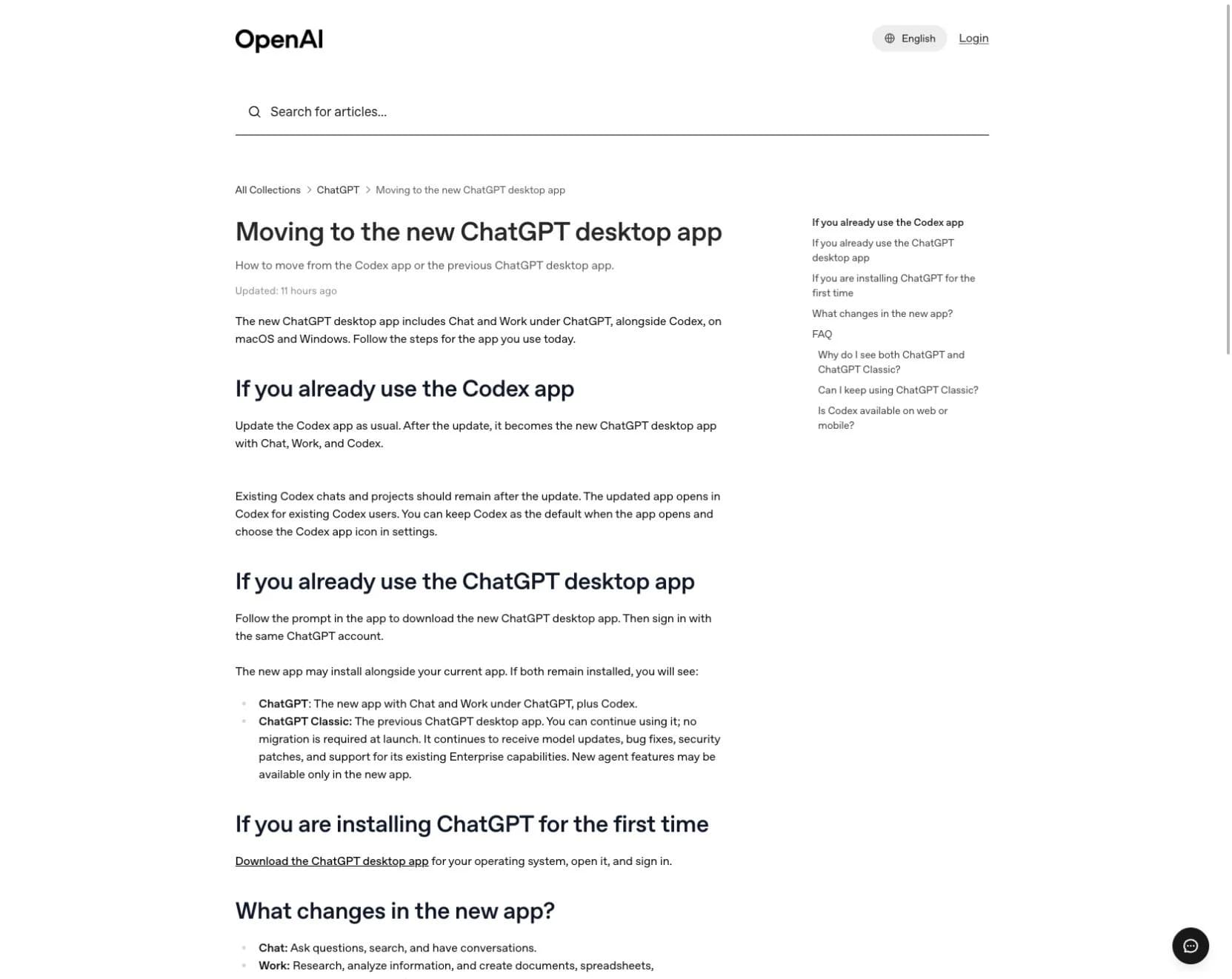
Source: OpenAI Help Center, Moving to the new ChatGPT desktop app(opens in a new tab).
2. The ChatGPT desktop app
Use the current ChatGPT desktop app, not only a normal browser tab. Start from OpenAI's official ChatGPT download page(opens in a new tab) when you need to install or refresh the app. OpenAI's macOS app download instructions(opens in a new tab) are the support reference for Mac-specific setup details.
If you already have an older desktop app, make sure you are using the new app, not the classic version.
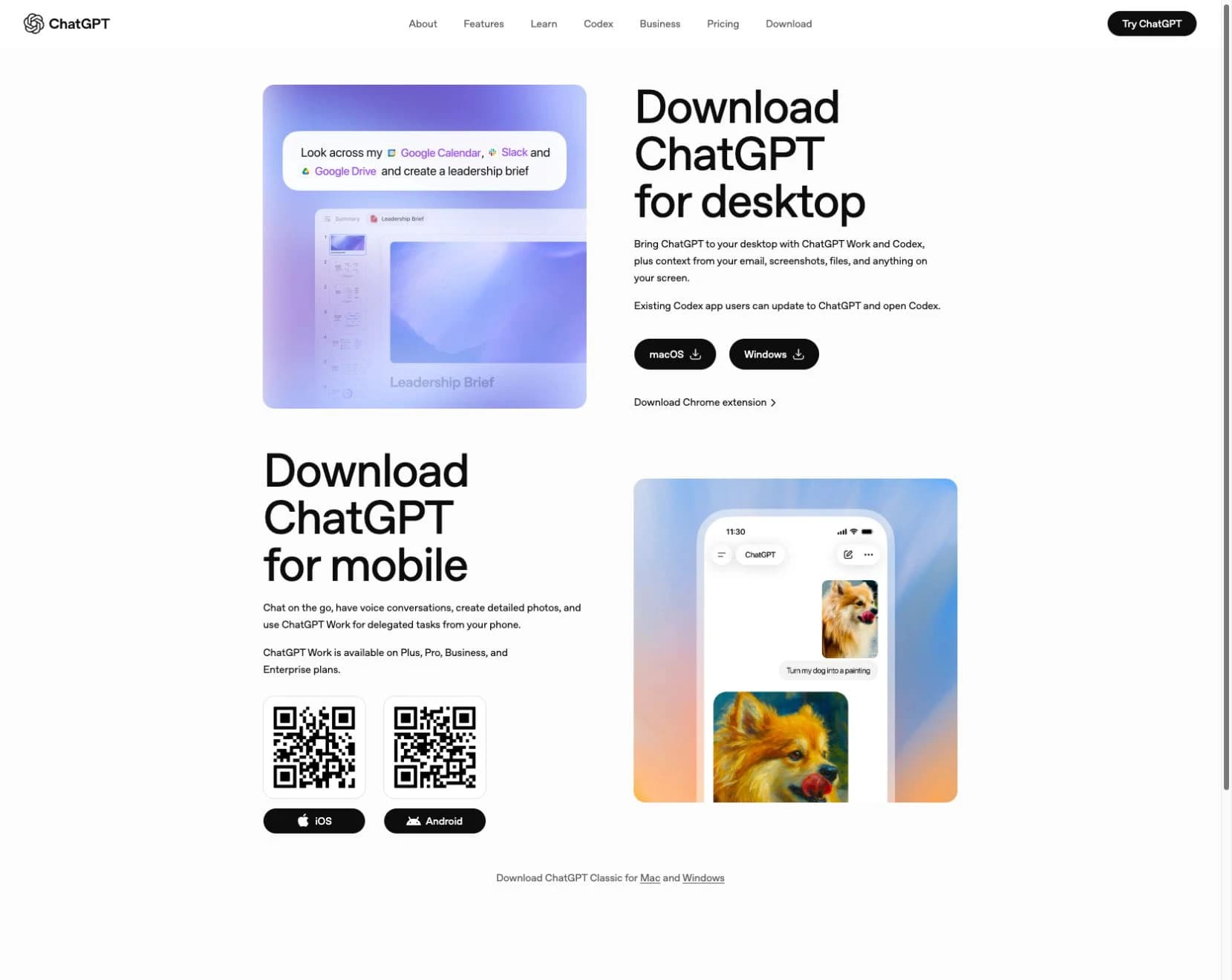
Source: ChatGPT download page(opens in a new tab).
3. Browser or computer-use permissions turned on
For this workflow, ChatGPT needs permission to use a browser. OpenAI's built-in browser documentation(opens in a new tab) explains how the desktop app can open and work with web pages. In some setups, the same practical idea may show up as computer use, Work, or an agent-style browser.
Do not skip the permissions step. ChatGPT should not be able to browse, download, open files, or interact with pages unless you have intentionally allowed that for the task.
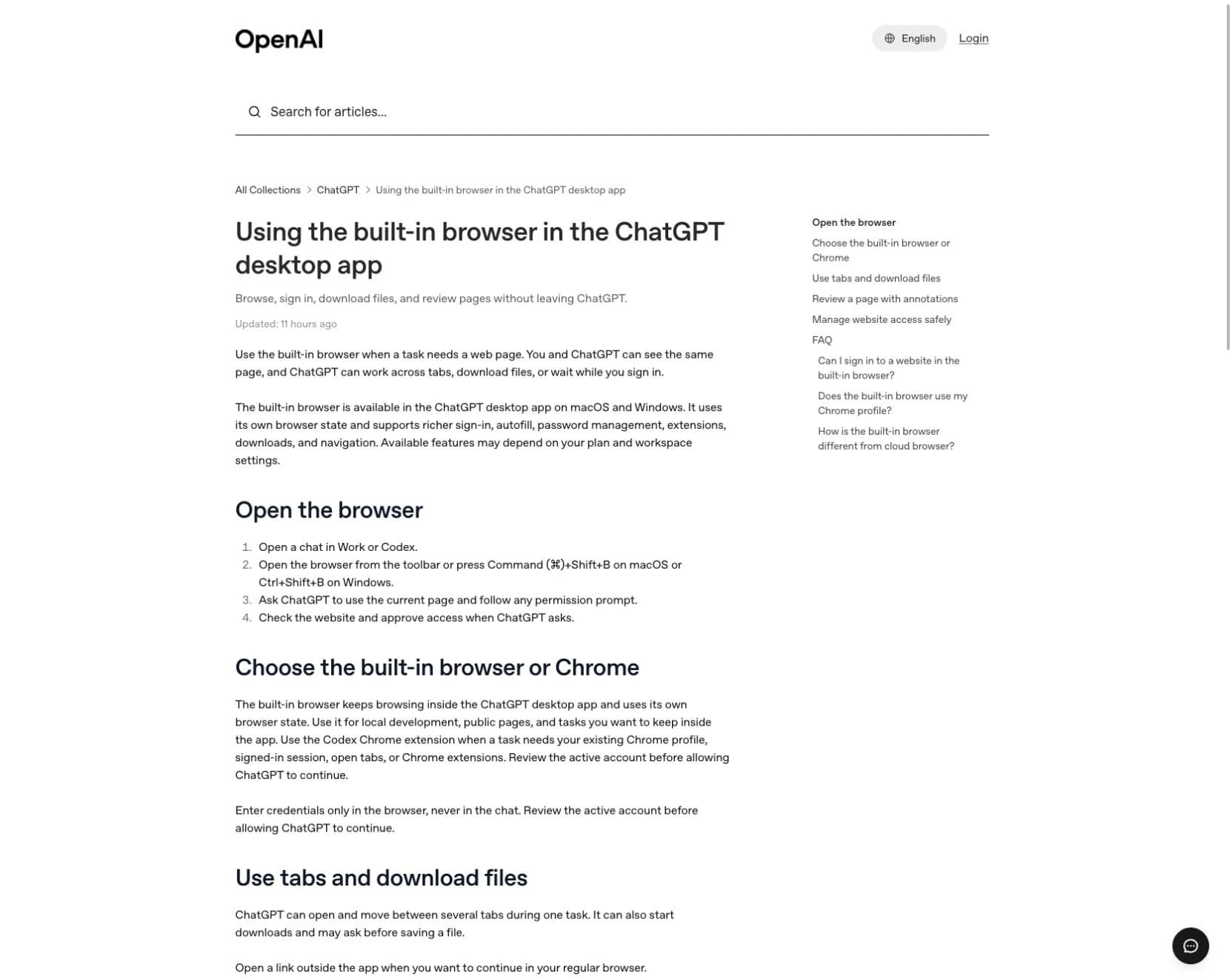
Source: OpenAI Help Center, Using the built-in browser in the ChatGPT desktop app(opens in a new tab).
4. A process worth verifying
This is best for work where the source matters:
- a government filing process;
- a license or registration requirement;
- a policy page that changes over time;
- a vendor help article;
- a form with instructions;
- a public rule, fee, deadline, or checklist.
If the answer could affect money, legal status, tax filings, client commitments, or access to an account, treat ChatGPT as the researcher and organizer. You are still the person who reviews and decides.
The simple prompt
Use this prompt when you want ChatGPT to research a process from official sources and show its work.
I need help researching a real process from official websites.

Goal:
[Describe the process in one sentence.]

Example:
I need to understand the steps for converting an LLC from one state to another.

Please do the work in this order:

1. Search for the official source first. Prefer government, regulator, or vendor documentation over blogs, ads, forums, or AI summaries.
2. Open the strongest official pages and tell me what each one is for.
3. Identify the forms, fees, deadlines, eligibility rules, and sequence of steps.
4. Turn the research into a checklist of what you can do, what I need to do, and what must wait on another person or office.
5. Separate confirmed facts from anything that is unclear or needs a phone call, professional review, or human decision.
6. Do not submit forms, pay fees, create accounts, send messages, upload files, or make changes unless I explicitly approve that exact action.
7. At the end, give me:
   - the official links you used;
   - the practical step-by-step checklist;
   - the open questions;
   - the items waiting on me or someone else;
   - what I should not do yet.

Start by opening the official sources and narrating what you are checking.
You can make it more specific by adding the jurisdiction, agency, account, vendor, or form name you already know.
What to watch while ChatGPT works
The point of this workflow is not that ChatGPT already knows the answer. The point is that it can help you move through a messy research path without losing structure.
As it works, watch for five things.
1. Is it using the right kind of source?
For government or compliance research, the first source should be an official agency page, statute, form instruction, help center, or published PDF.
A blog post may help explain the topic later, but it should not be the root of a high-stakes answer.
2. Is it separating the filing sequence from the interpretation?
A good research pass should tell you:
- what the source directly says;
- what the likely practical sequence is;
- where the source is unclear;
- what still needs a human call.
That separation matters. AI can summarize a form. It cannot take responsibility for your legal, tax, compliance, or business decision.
3. Is it stopping before side effects?
For this workflow, ChatGPT should not submit, pay, upload, sign, send, delete, or change anything without your explicit approval.
Research is one kind of work. Filing is another. Keep those gates separate.
4. Is it preserving the links?
Do not accept a checklist with no source links.
Ask for the official links, the form links, and the page titles. If the process changes later, you need a way to refresh the answer.
5. Is it telling you what not to do yet?
A useful assistant does not only say "here are the steps." It also says:
- do not file this until the prerequisite is accepted;
- do not update vendors until the state record changes;
- do not pay the fee until you confirm the right form;
- do not use your home address unless you understand the public-record tradeoff.
That is where the workflow becomes more than a search summary. It becomes a review loop.
What ChatGPT can do, and what it cannot replace
This is the part that makes the demo useful: the assistant does not remove the real world. It reduces the confusion around the real world.
In a strong run, ChatGPT can help with:
- finding the official pages and forms;
- comparing instructions across agencies;
- turning scattered requirements into a sequence;
- drafting a checklist;
- identifying missing documents;
- preparing review copies;
- flagging places where a human should call, sign, approve, or wait.
But there are still pieces it should not quietly do for you.
You may still need to:
- contact a vendor, registered agent, agency, bank, or professional;
- request a signed consent, receipt, certificate, or other document;
- review private facts that should not be exposed unnecessarily;
- sign documents yourself;
- physically deliver or mail a package;
- authorize a fee;
- wait for the agency, vendor, or other party to process the request.
In some workflows, those offline steps take longer than the AI-supported research and preparation. That is normal. The win is that by the time you get to the offline step, you know what you are asking for, why it matters, what to bring, and what should wait until the previous step is accepted.
A small example
Suppose you are researching a state business filing.
The weak version of the prompt is:
How do I convert my LLC to another state?
That invites a generic answer.
The stronger version is:
Research the official state process for converting an LLC from Wyoming to Washington.
Use the Washington Secretary of State and Wyoming Secretary of State as primary sources.
Tell me the required forms, fees, order of operations, what evidence one state needs from the other, and what I should not file yet.
Do not submit anything or pay anything.
Now ChatGPT has a job, a source hierarchy, and a boundary.
It also has a way to create momentum without pretending the process is instant: first research, then checklist, then missing documents, then signatures, then submission, then follow-up.
The human-owned review step
Before you act on the result, run this check.
- Source check: Are the links official and current?
- Sequence check: Does the order make practical sense?
- Side-effect check: Has anything been submitted, paid, uploaded, or changed?
- Unclear-items check: Did ChatGPT name the items that still need a call, professional review, or direct confirmation?
- Decision check: Are you the one making the final decision?
If the answer to any of those is no, pause.
The goal is not to let AI take over your judgment. The goal is to move you from manual tab-hopping into review mode, where the research is organized enough for you to decide.
The durable lesson
The interface will change. The exact button names will change. The feature may be called Work(opens in a new tab), browser(opens in a new tab), computer use, or agent-style research.
The mechanism underneath stays the same:
- give the assistant a clear job;
- tell it which sources count;
- watch the work;
- preserve the evidence;
- stop before side effects;
- keep human judgment at the decision point.
That is the part worth learning. Not because it makes AI impressive, but because it makes real work easier to review.
Sources used for this guide
These official OpenAI pages were used to verify the ChatGPT setup details in this guide on July 31, 2026: